
Hands-On with Google Workspace CLI (gws) — Gmail, Drive, and Calendar from the Command Line
Introduction
On March 4, 2026, Google open-sourced Google Workspace CLI (gws) under the Apache 2.0 license. It lets you operate nearly every Google Workspace service — Gmail, Google Drive, Calendar, Sheets, Docs, Chat, Admin — directly from the command line.
The reason it immediately drew attention goes beyond being just another CLI tool. gws is designed from the ground up for AI agent integration. Every response is structured JSON, over 100 Agent Skills (SKILL.md) files are bundled, and an MCP server is built in. The future where Claude Code or Gemini CLI can directly manipulate Google Workspace is nearly here.
In this first installment, we cover installing gws, setting up OAuth authentication, and actually operating Gmail, Drive, and Calendar.
What Is gws?
gws is a CLI tool for the Workspace API, published by Google on GitHub and npm. Here is a quick overview:
| Feature | Details |
|---|---|
| Language | Rust |
| Distribution | npm (@googleworkspace/cli) |
| License | Apache 2.0 |
| Supported services | Drive, Gmail, Calendar, Sheets, Docs, Chat, Admin, etc. |
| Response format | Structured JSON throughout |
| AI integration | 100+ Agent Skills (SKILL.md), built-in MCP server |
What makes gws technically interesting is that it does not ship with static commands. At startup, it fetches API specifications in real time from Google Discovery Service and dynamically generates commands. When Google adds a new API, gws automatically picks it up.
gws is explicitly "not an officially supported Google product." It is currently at v0.7.0, and breaking changes may occur before v1.0.
Installation
If you have Node.js (npm) installed, it is a single command:
npm install -g @googleworkspace/cliVerify the installation:
$ gws --version
gws 0.7.0
This is not an officially supported Google product.
Setting Up OAuth Authentication
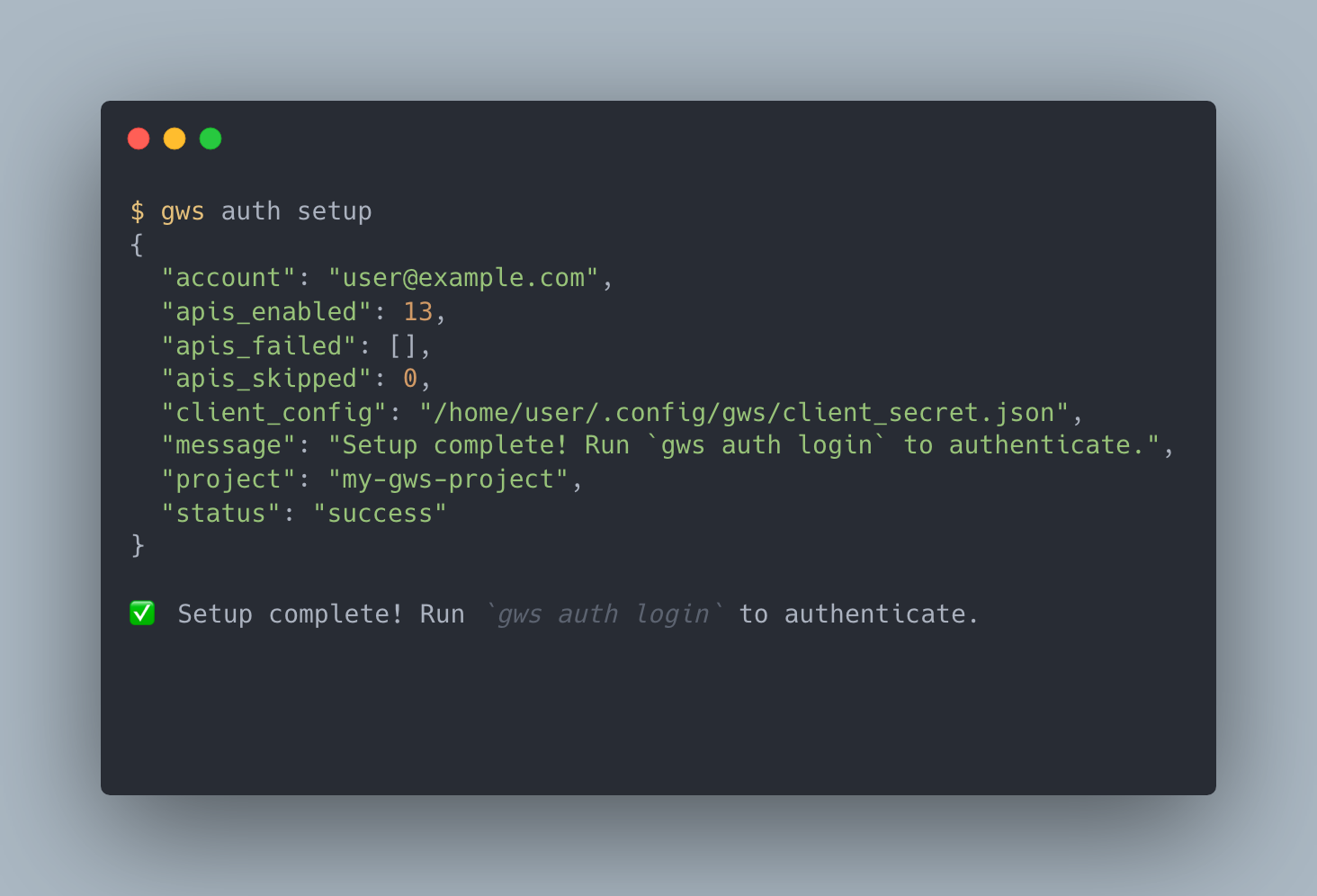
Using gws requires Google Cloud OAuth authentication. The gws auth setup command handles everything from GCP project creation to API enablement in one step.
gws auth setupThis command automatically:
- Detects gcloud CLI — gcloud must be installed beforehand
- Selects a GCP project — use an existing project or create a new one
- Enables Workspace APIs — batch-enables 13 APIs including Drive, Gmail, and Calendar
- Configures the OAuth client — prompts for Client ID and Client Secret
Configuring the OAuth Consent Screen
At Step 5 (OAuth credentials), you will see "Manual OAuth client setup required."
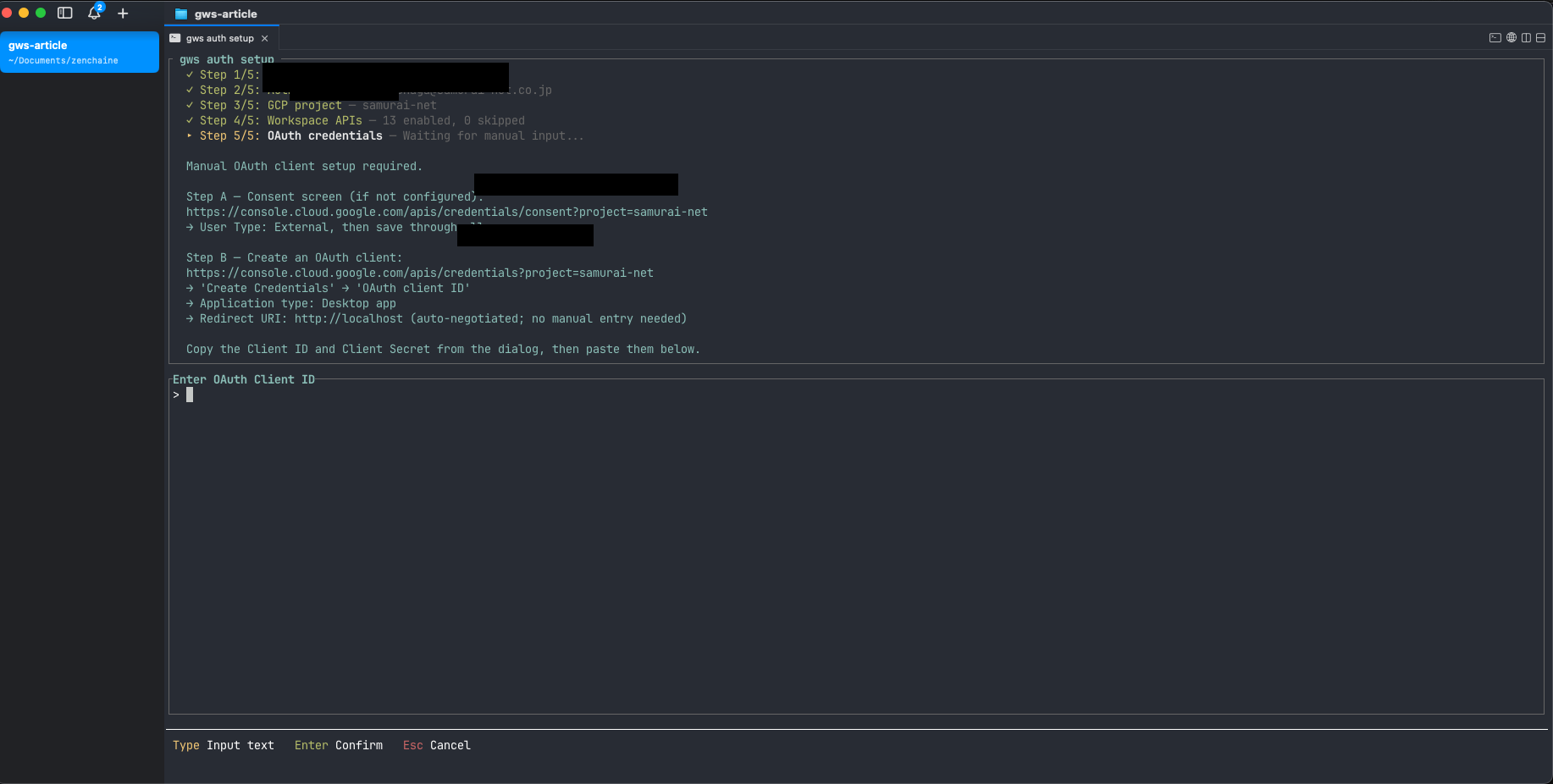
This is where GCP Console configuration is needed. Open the URL displayed on screen and follow these steps.
Step A: Create the OAuth Consent Screen (Branding)
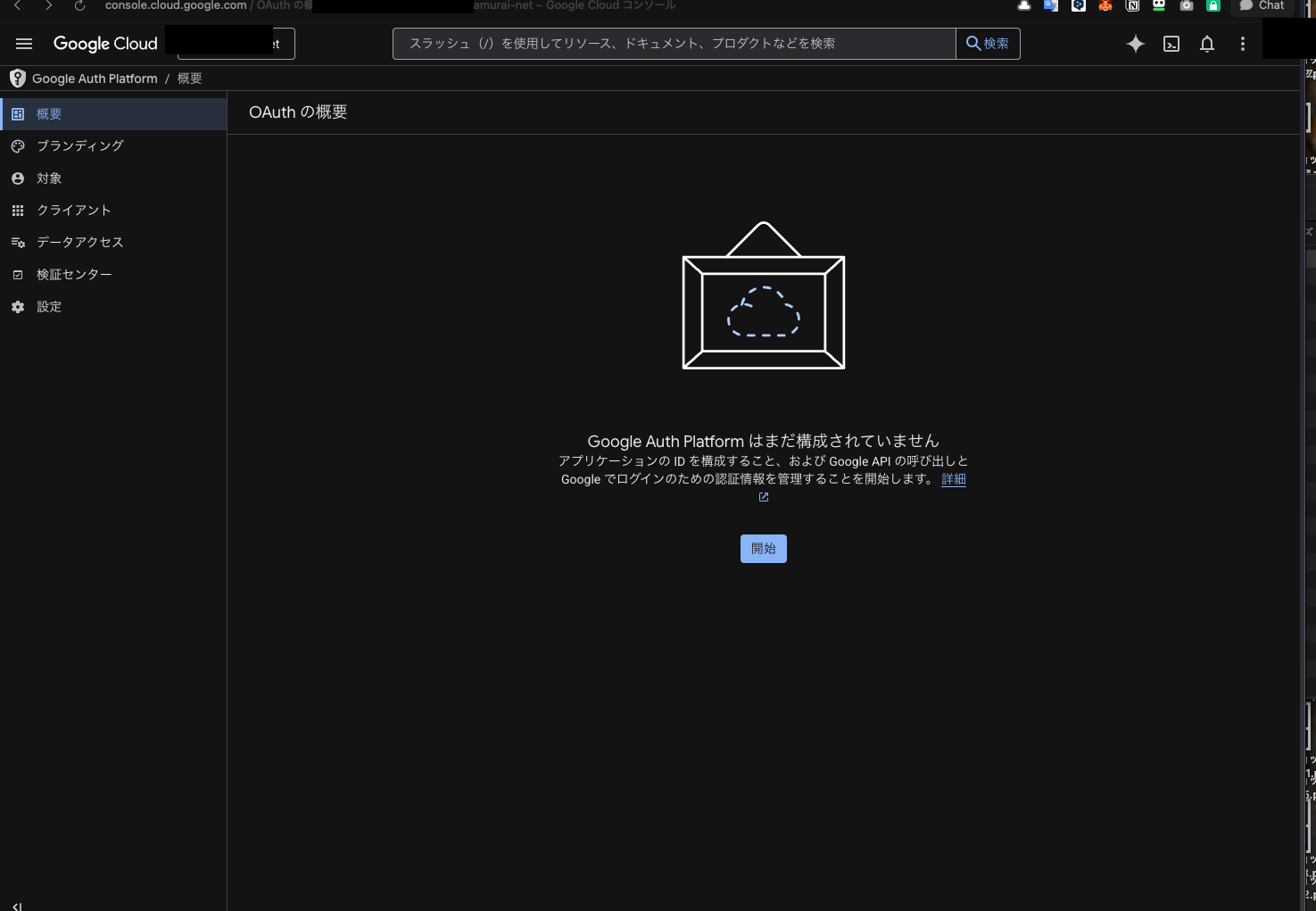
Click "Get Started" on the Google Auth Platform overview screen.
The branding creation form appears. You only need to fill in two fields:
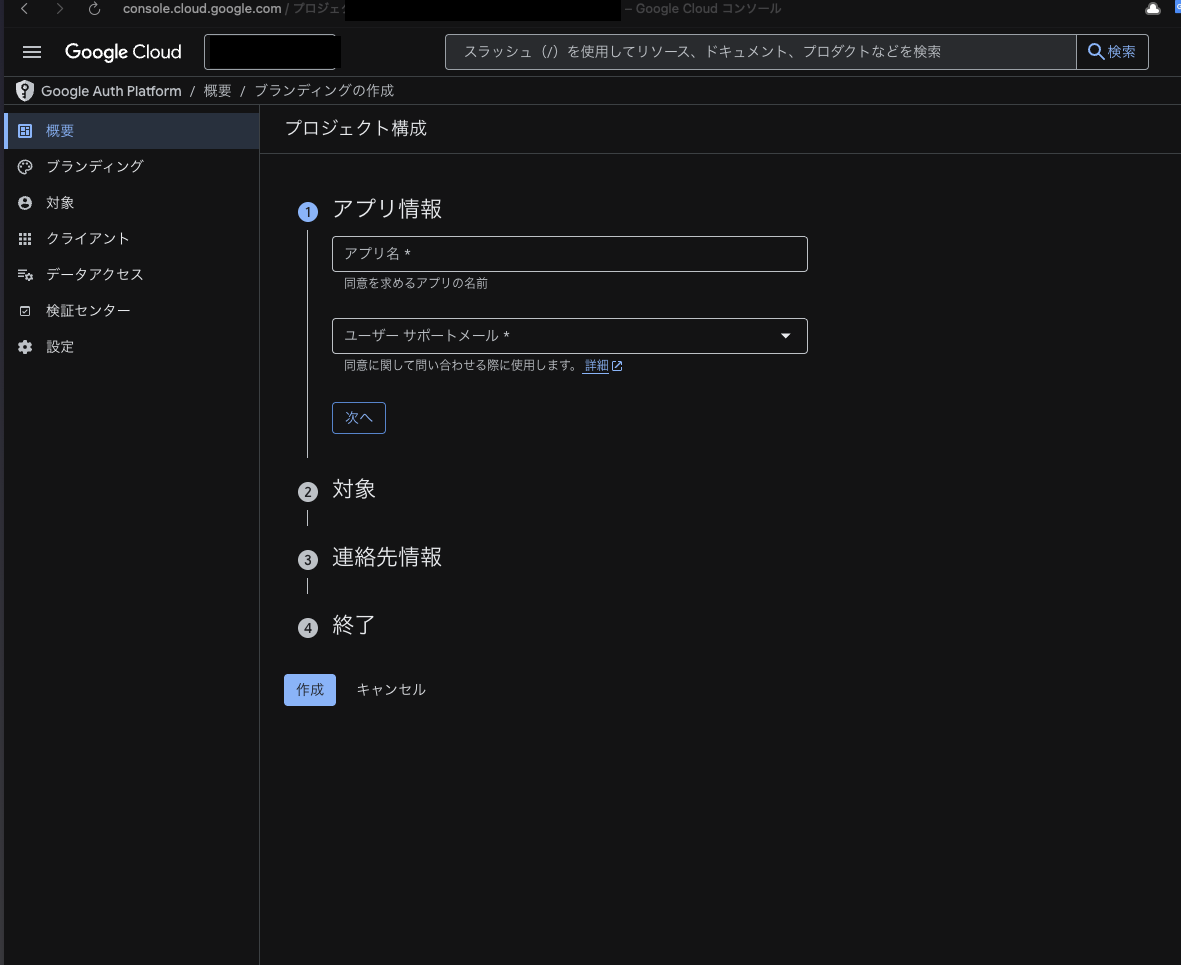
- App name: Enter
gws(since only you will use it, anything works) - User support email: Select your email address
Click "Next" to reach the audience selection screen. Choose "External."
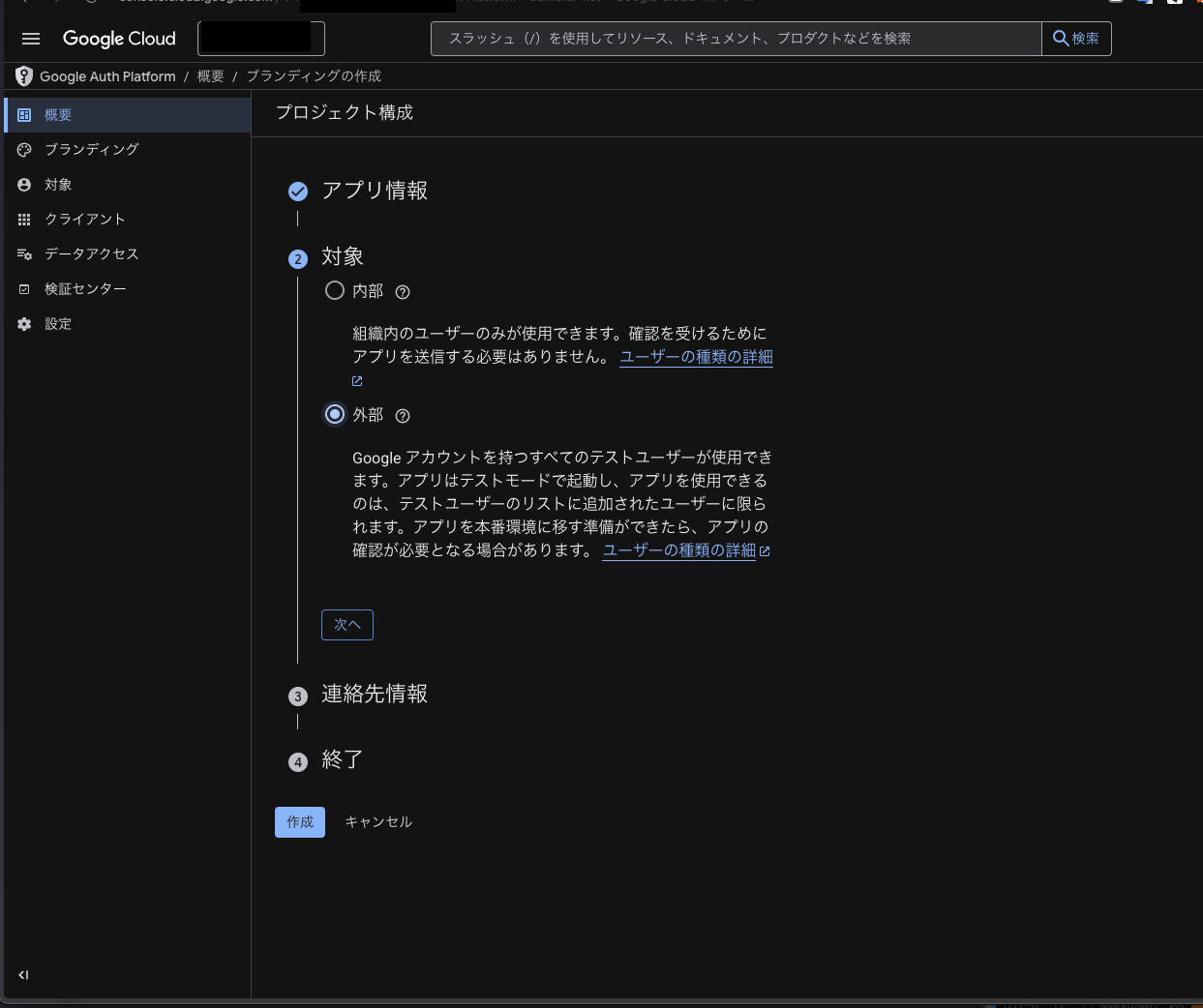
Enter your email for contact information and click "Create." The GCP Console setup may look intimidating, but all you really do is enter an app name and an email.
Step B: Create an OAuth Client ID
Navigate to "Clients" in the left menu, then "Create OAuth Client ID."
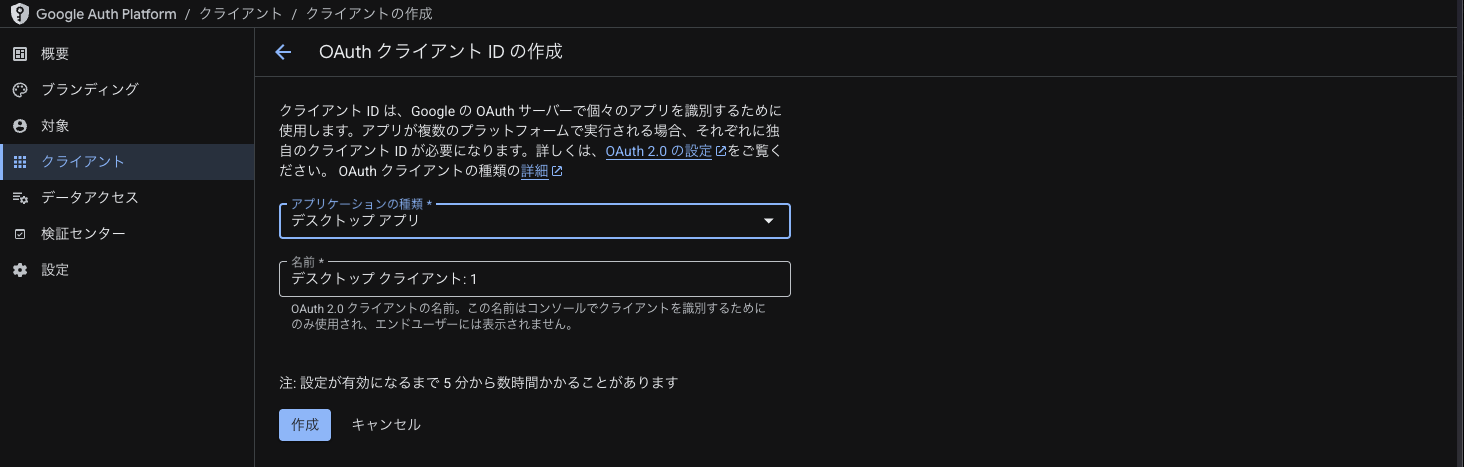
- Application type: Select "Desktop app"
- Name: Leave as default
- Click "Create"
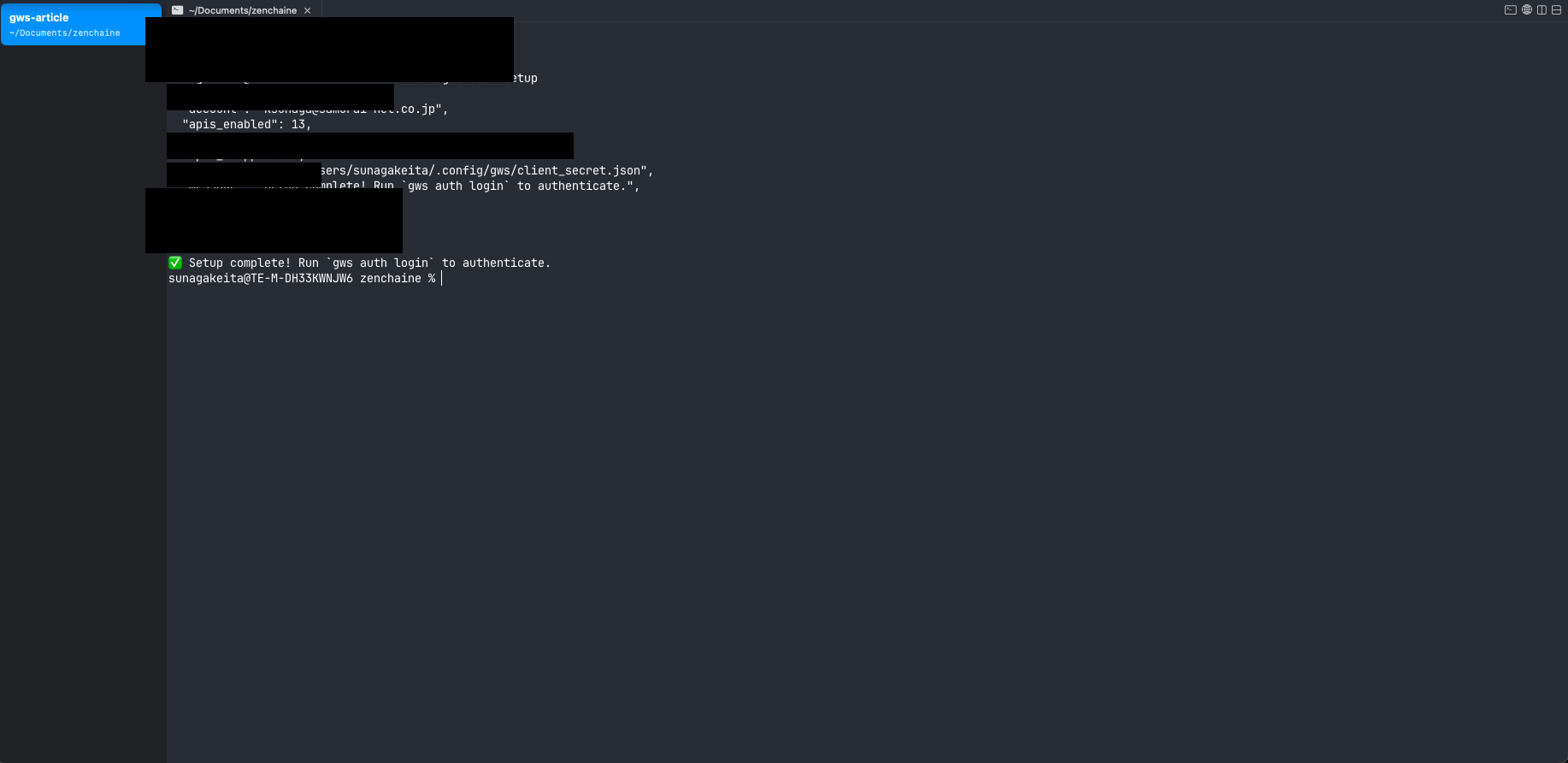
Paste the displayed Client ID and Client Secret back into your terminal, and setup is complete.
Logging In (OAuth Authentication)
Once setup is done, log in:
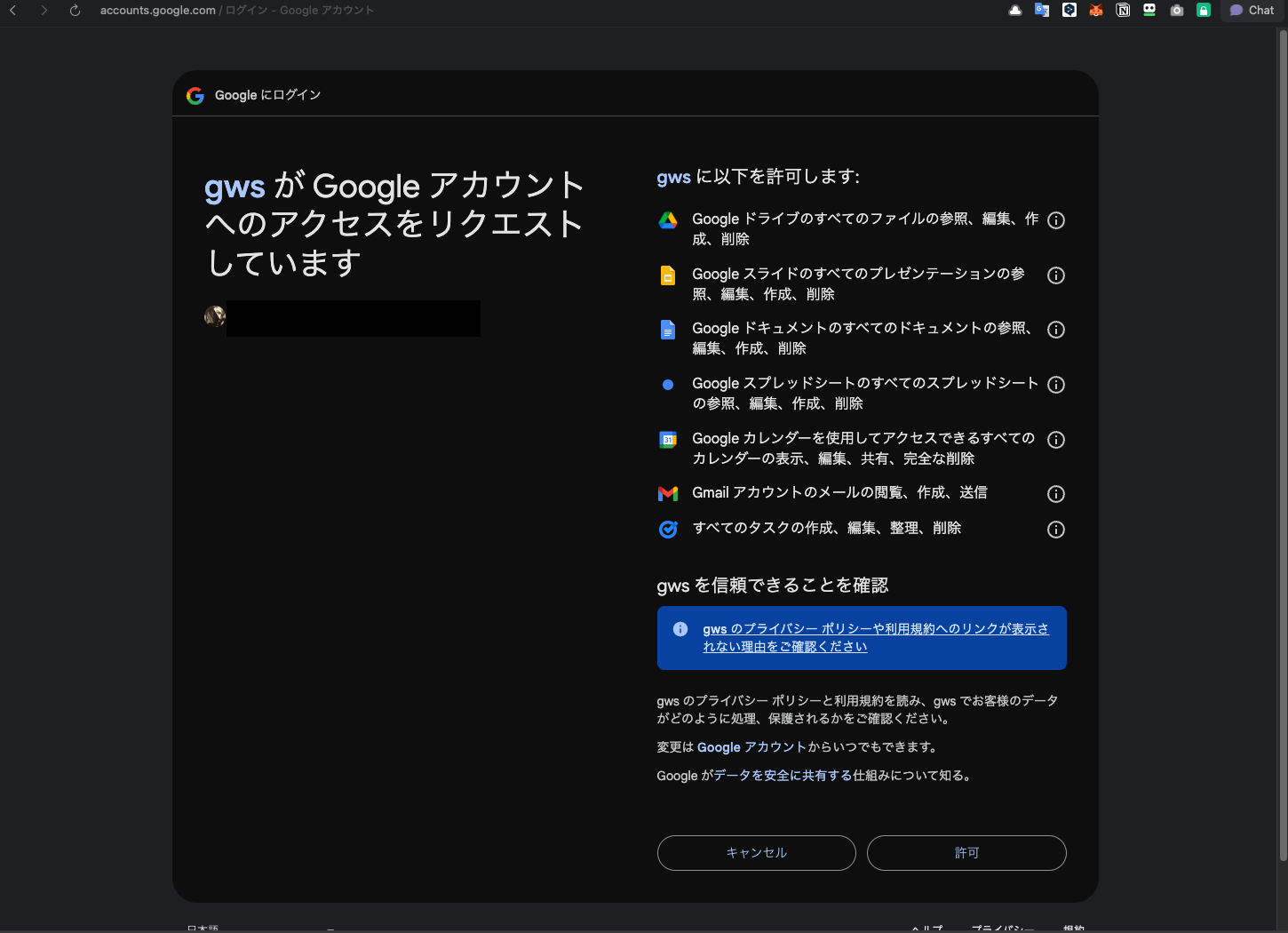
gws auth loginA browser window opens with the OAuth scope selection screen. Select Recommended (Core Consumer Scopes) to grant permissions for Drive, Gmail, Calendar, Docs, Sheets, and Tasks all at once.
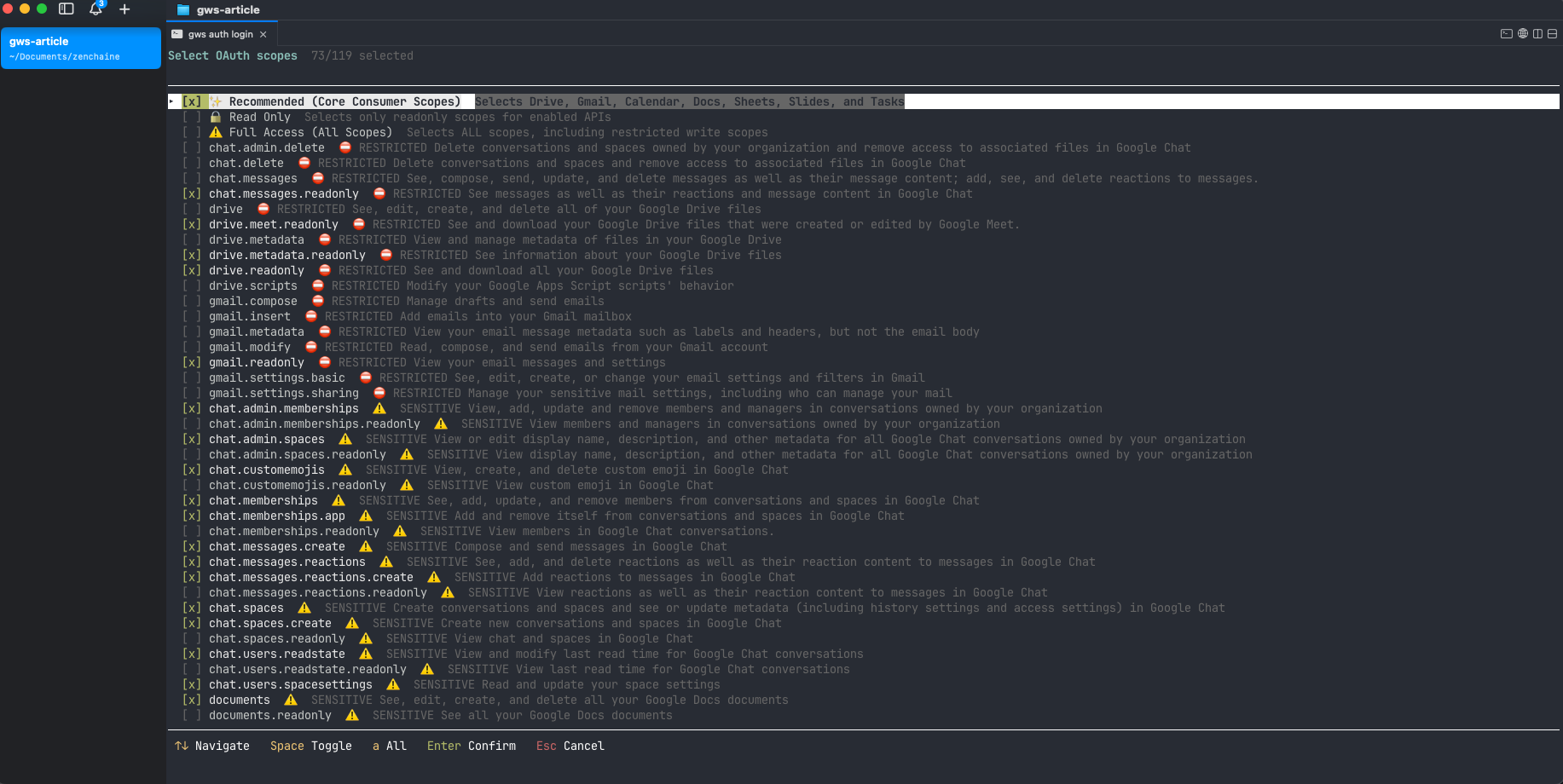
Click "Allow" on the Google permissions screen.
Once authentication completes, credentials are stored encrypted with AES-256-GCM in the OS keyring.
Hands-On Usage
With authentication in place, let's actually use gws to interact with Google Workspace.
Google Drive — List Files
gws drive files list --params '{"pageSize": 5}'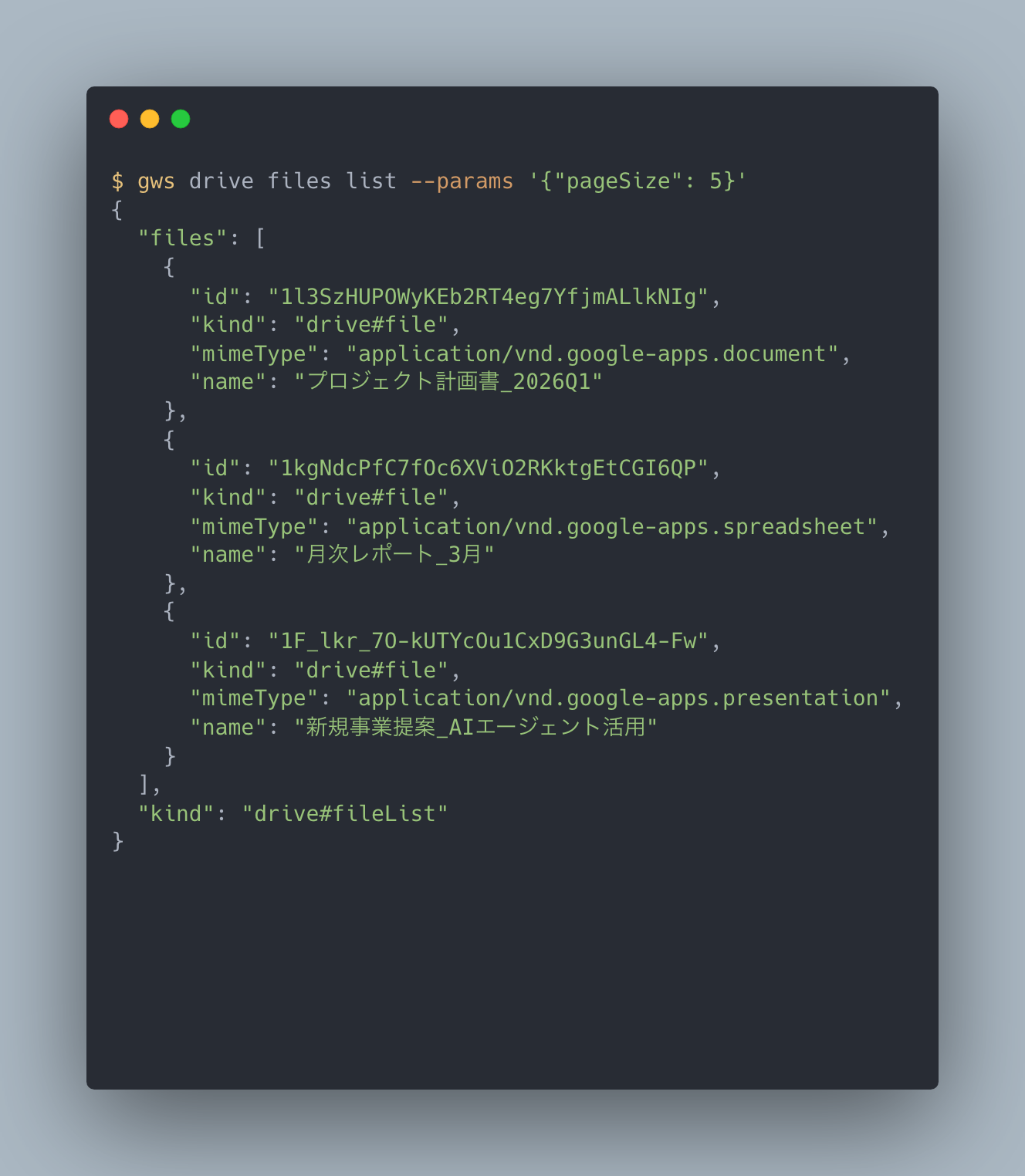
Documents, spreadsheets, presentations — files in your Drive are returned in JSON format. The mimeType field identifies the file type, and the id field lets you access individual files.
Gmail — Retrieve Message Details
gws gmail users messages get \
    --params '{"userId": "me", "id": "<message-ID>", "format": "metadata"}'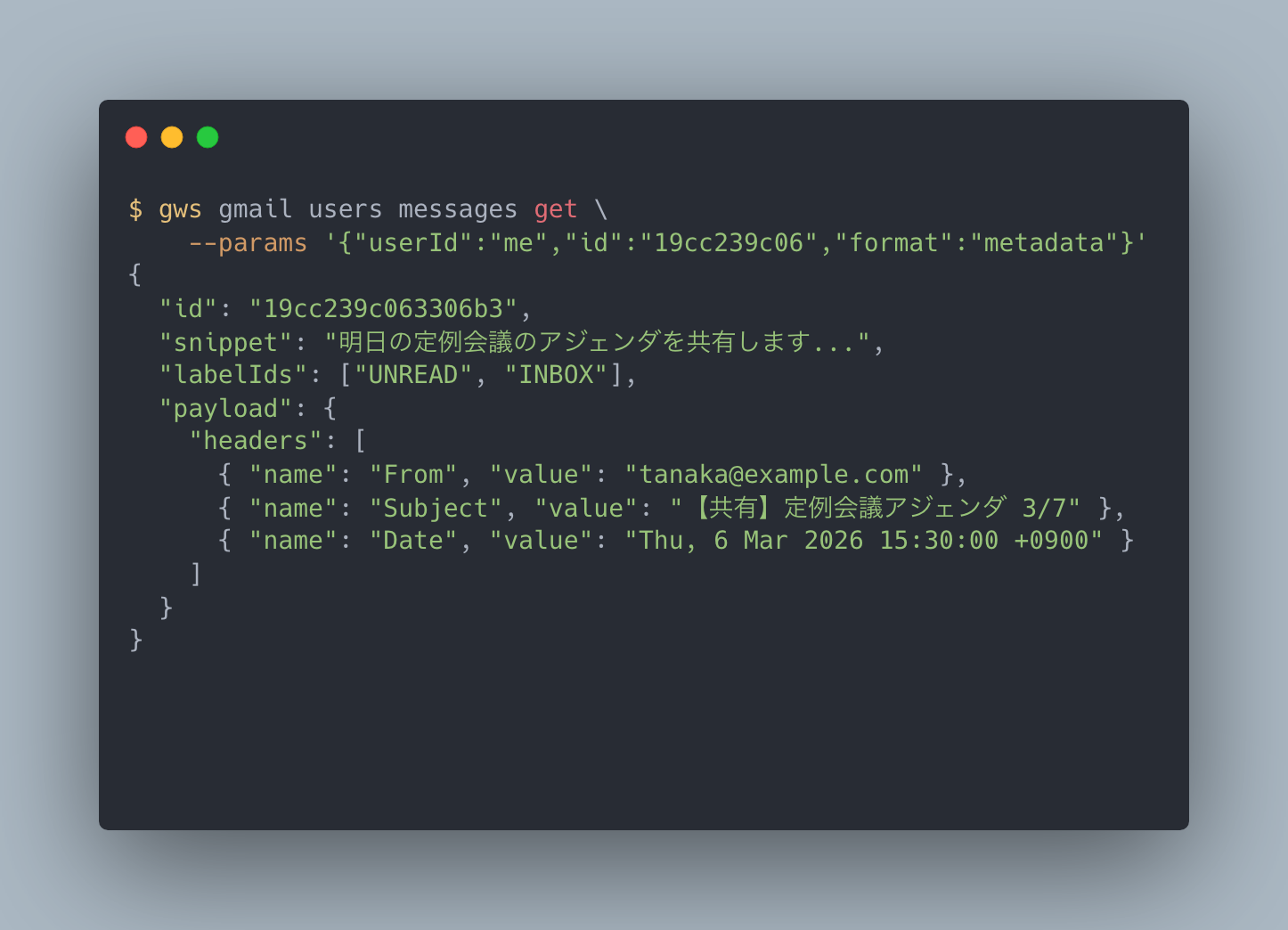
Beyond listing messages, you can retrieve individual message metadata including subject, sender, and timestamps. The format parameter controls how much information is returned.
Google Calendar — List Events
gws calendar events list \
    --params '{"calendarId": "primary", "maxResults": 3, "singleEvents": true}'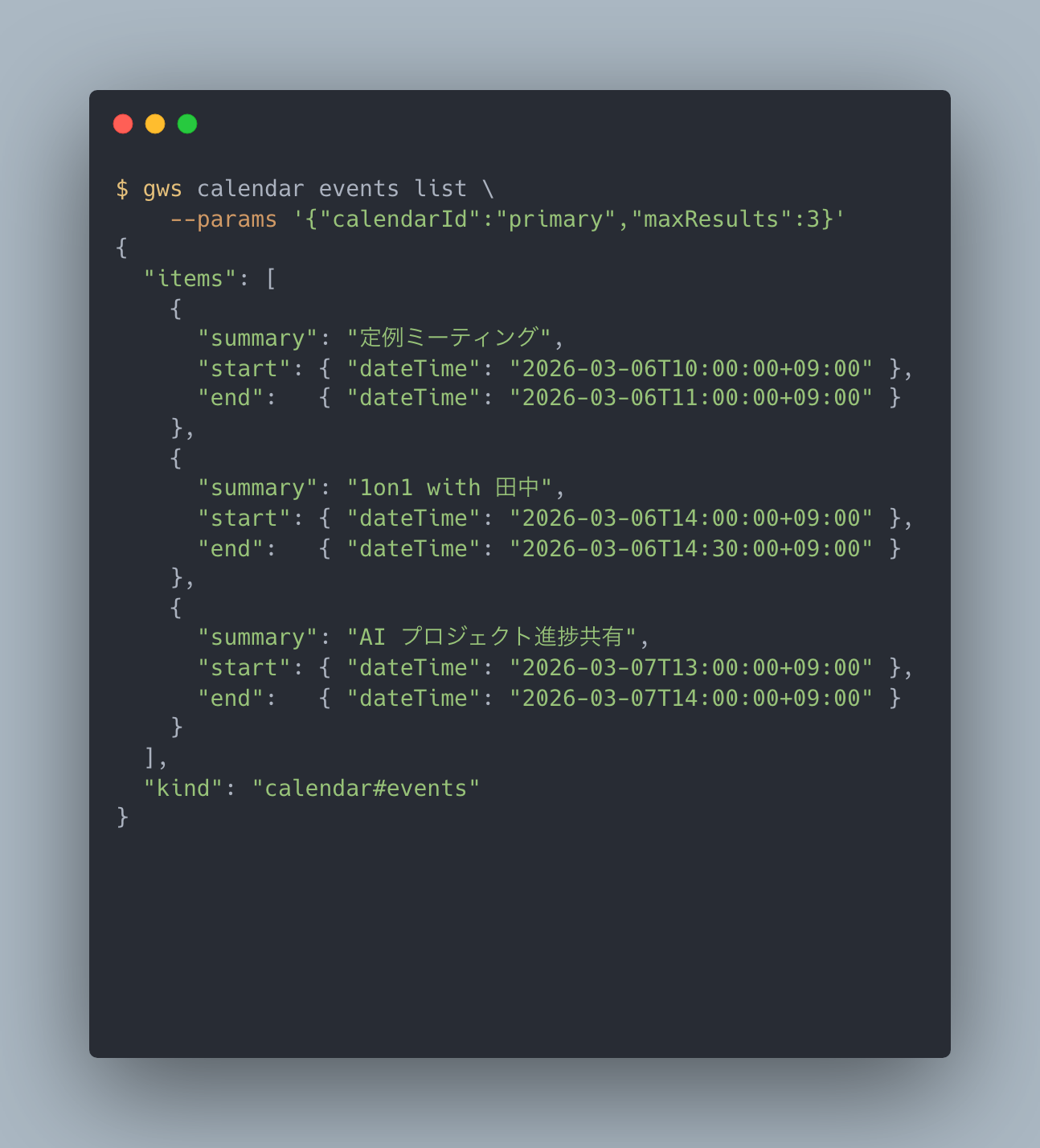
Calendar events come back as structured JSON. With summary (event name) and start / end (times) clearly structured, programmatic processing is straightforward.
Why Structured JSON Responses Matter
The fact that every gws response is structured JSON is critically important for AI agent integration:
- No parsing needed: AI can read the output directly
- jq-compatible:
gws drive files list | jq '.files[].name'extracts just file names - Pipeline-ready: Combine with other commands to build automation workflows
This reflects a design philosophy of unifying "CLI for humans" and "API for AI" in a single interface.
Summary
We installed Google Workspace CLI (gws) and used it to operate Gmail, Drive, and Calendar from the command line.
What we did:
- Installed gws (
npm install -g @googleworkspace/cli) - Set up OAuth authentication in the GCP Console
- Listed Drive files, retrieved Gmail messages, and fetched Calendar events
Impressions:
- OAuth setup is a one-time hassle, but once configured, the experience is smooth
- All-JSON responses make gws an excellent fit for scripts and AI agents
- The polish at v0.7.0 is promising
The real power of gws actually lies in features we did not cover today: Agent Skills and the MCP server. Over 100 SKILL.md files are bundled, enabling Claude Code and Gemini CLI to operate Google Workspace through natural language.
Next time, we will install these Agent Skills into Claude Code and demonstrate natural-language commands like "What's on my calendar tomorrow?" and "Summarize my latest emails." Stay tuned.